
Delayed capture
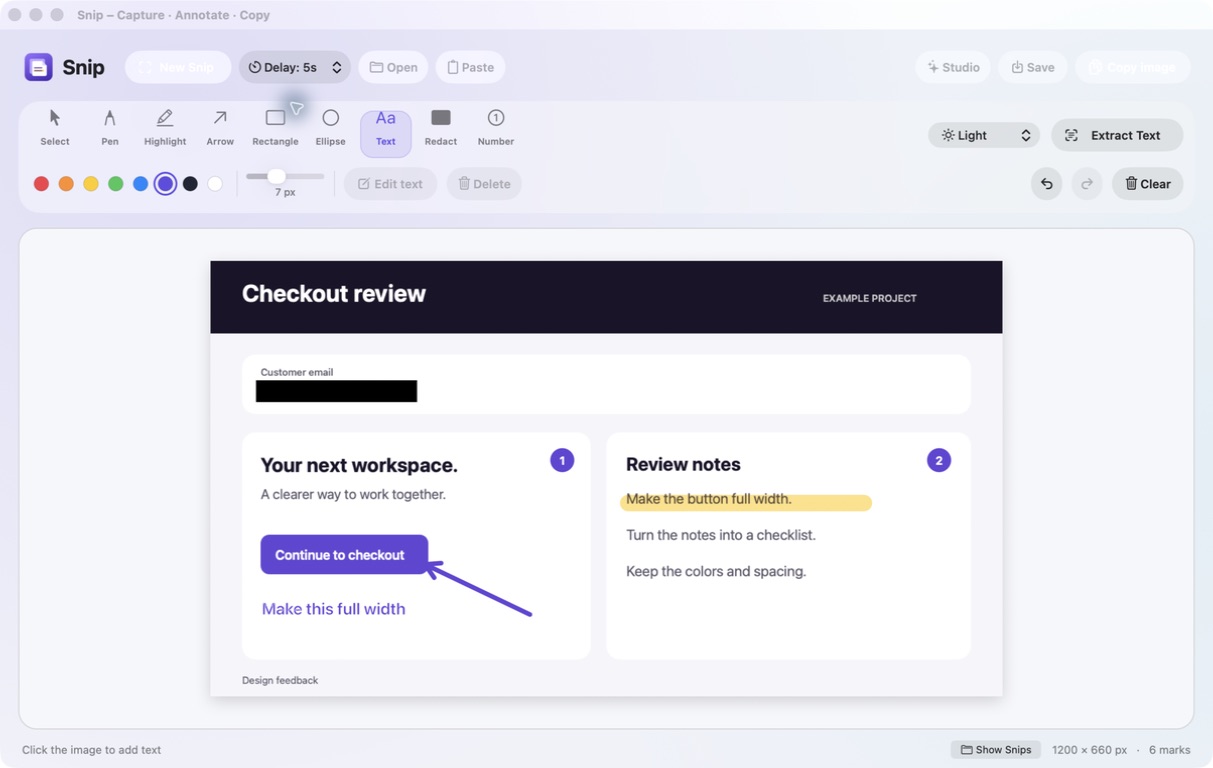
Give yourself 3, 5 or 10 seconds to open a menu or arrange the screen before Snip captures it.
Capture a detail. Mark the change. Bring clear context to your next AI conversation.
For Mac · macOS 14 or later
30-SECOND DEMO
Capture, annotate, copy—and turn screenshots into text. See it in 30 seconds.
Real Snip for Mac footage · English
HOW IT WORKS
Click New Snip — it sits leftmost in the editor — or pick a Delay of 3s, 5s or 10s first. Then drag to select an area, or choose Full screen for that display.
Add an arrow, text, a numbered marker or a redaction. Marks stay adjustable while you work, with Undo and Redo in the current session.
Click Copy image, then paste it yourself into a chat that accepts images and type your request.
Snip prepares your screenshot. Your AI chat handles the conversation. Snip does not connect to an AI service, send prompts or change your code.
FEATURES
Give yourself 3, 5 or 10 seconds to open a menu or arrange the screen before Snip captures it.
Point, highlight, label and number the exact details that matter—then adjust every mark while you work.
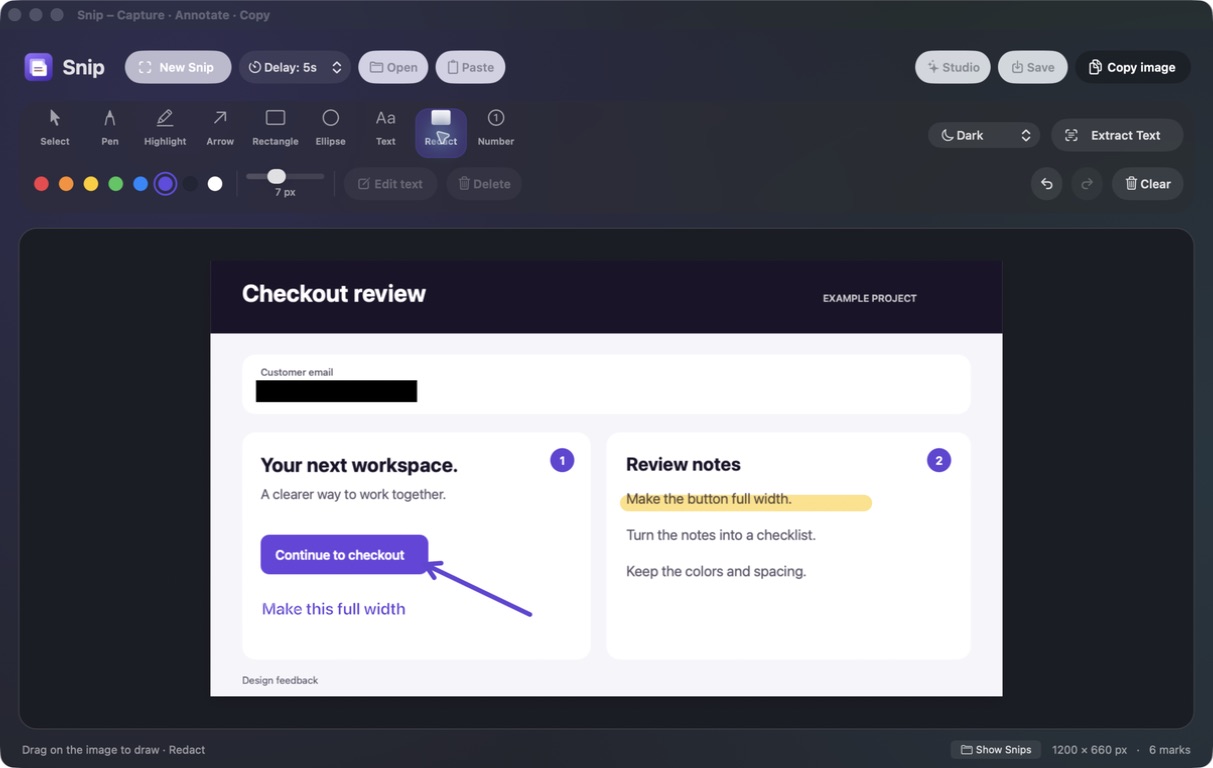
Cover sensitive details before copying or saving your finished image.
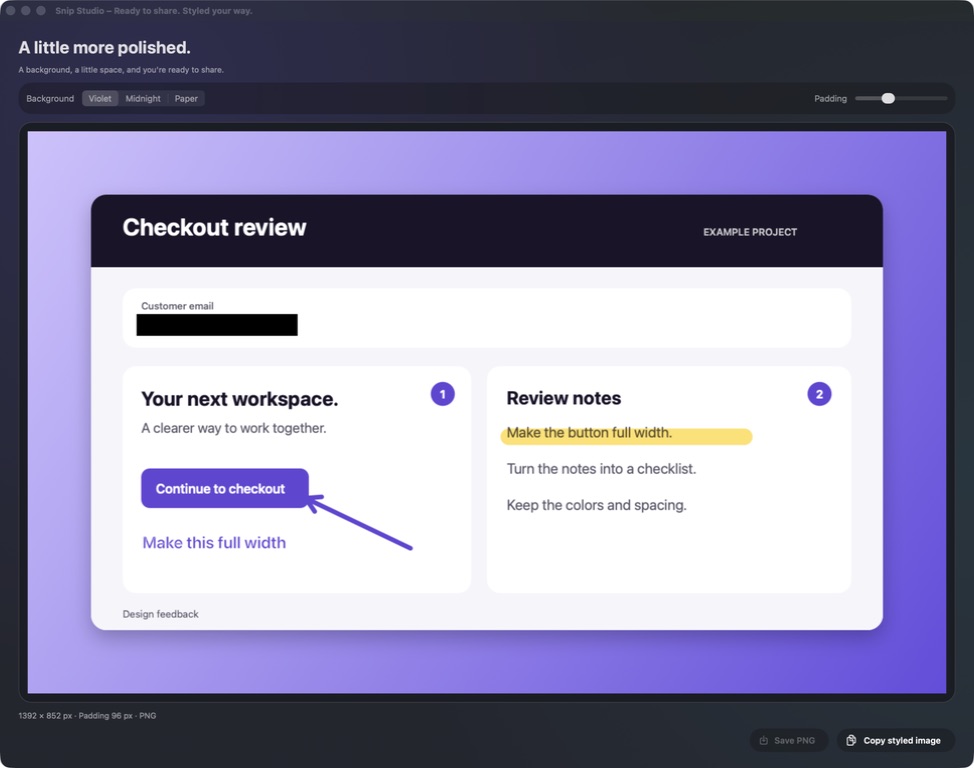
Turn a practical capture into a polished image with backgrounds, spacing, corners and shadow.
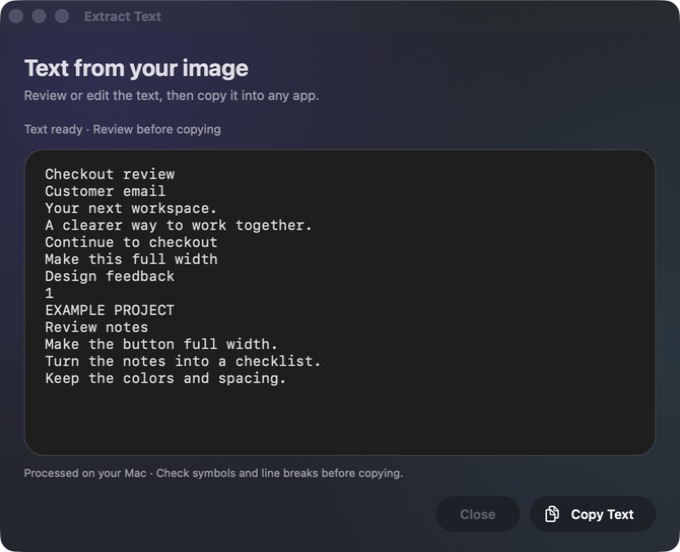
Turn visible words into editable, copyable text with Apple Vision—processed on your Mac.
Your latest capture is already saved as a PNG, while Copy image keeps sharing one click away.
GALLERY
Snip for Mac · Example project
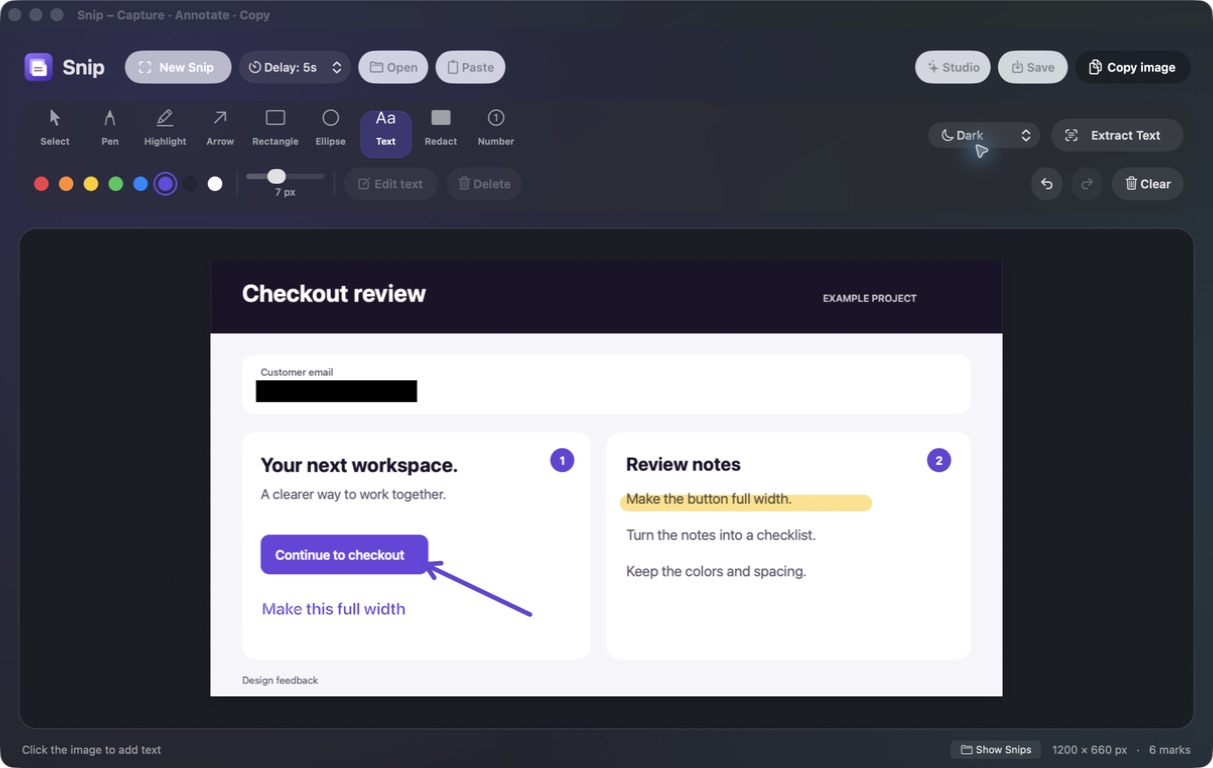
Editor · Dark · Delay 5s
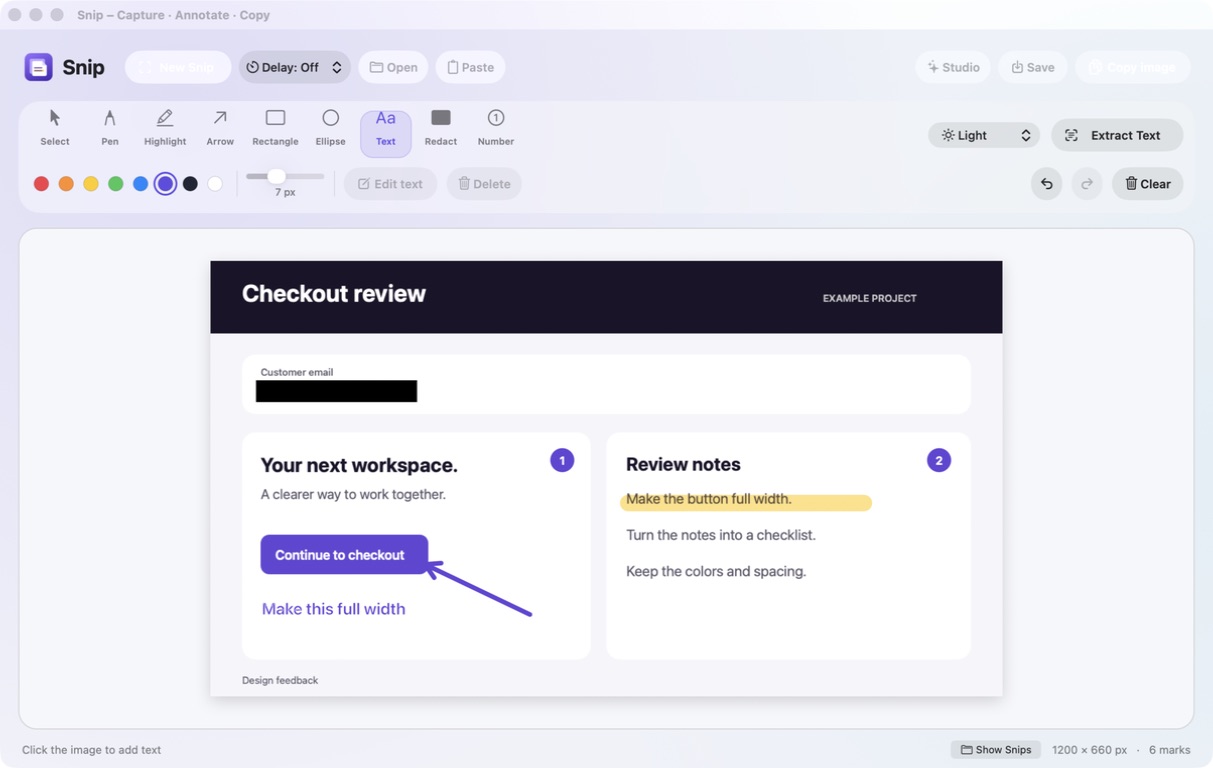
Editor · Light · Delay Off
Studio · Violet styled export
Extract Text · Apple Vision OCR
Editor · Redact selected
Editor · Light · Delay 5s
Snip is a native Mac app you buy once. No account, no subscription, no cloud service to keep paying for.
FAQ